Release Notes
Version 0.8.0, 22.08.2026
Version 0.8.0 of Launcher Two includes new functionality for everyday use. Smart suggested apps in the app drawer, app sorting options for apps in the app drawer and custom label positioning.
 Custom label placement options
 Custom label placement and custom icon size
 Suggested app row and sort options in app drawer
App Drawer Enhancements
App drawer now features a row of suggested apps, which takes into account the recency and the frequency of app usage. You can also customize the number of apps displayed in the suggested app row and also exclude specific apps from suggestions.
Suggested apps row supports:
- Exclude from suggested - select which apps will never appear in suggestions
- Suggested apps amount - choose how many apps to show in the suggested row
- Clear usage history - clear all usage history and start learning app usage from scratch
Also in this Release
- Custom label placement for items in folders: Left, Below or to the right of the icon
- Custom sorting of apps in the app drawer, sort by name, install time, update time or usage
- Configuration option to control whether keyboard is shown each time app drawer is opened
- Refined the looks of bottom sheets across the app
- Fixed an issue when moving containers between sections
Shape what gets built next
Your opinion matters. Share your thoughts and feedback and help shape the future of Launcher Two.
Feedback formLauncher Two is still in open testing which means there may be bugs and incomplete features.
The database was rebuilt in this release, so your current layout is not carried over and the home screen starts fresh.
Version 0.7.0, 01.08.2026
Version 0.7.0 of Launcher Two transforms L2 into a fully functional home screen launcher instead of a second home screen auxiliary app launcher. You can now set L2 as your default home screen launcher and enjoy a unique new home experience, with additional features coming soon.
 Minimalistic screen layout made with Launcher Two
 Folder settings dialog
 Content is organized in sections which can be resized and reordered
Edit in Place
Long press an empty area on the home screen and select "Edit" to start modifying your home screen layout.
Unlike in previous versions, the in-place layout editor allows you to see exactly how your home screen will look.
Your home screen layout is built with:
- Sections - Sections organize your content. They can be resized, reordered and hidden (hidden sections do not appear on the home screen).
- Folders - Hold and customize the look of your app icons (shortcuts, bookmarks and direct dials are coming soon). If you want to add a single app item, add a folder with a single app inside it.
- Widgets - Each section can contain one or more widgets, which can be resized, reordered, hidden or deleted.
Folders and widgets inside a section can be resized, moved and stacked on top of each other to create unique layouts.
You can also drag and drop folders and widgets between sections.
Charging Animation
When you plug your phone in, a soft color glow chases around the edges of the screen. This lets you know your phone is charging without having to look at the battery icon.
Also in this Release
- Default home screen layout for new installs
- Context menu for apps in the app drawer
- Scrollbars for the home screen and app drawer
- New settings screen
- Work profile apps are also shown in the app drawer
Launcher Two is still in open testing which means there may be bugs and incomplete features.
The database was rebuilt in this release, so your current layout is not carried over and the home screen starts fresh.
This release also adds anonymous crash and usage reporting, which helps find the bugs you would otherwise have to report yourself.
Version 0.6.0, 02.07.2026
This release introduces a brand new app drawer, giving you fast access to every app on your device alongside quick shortcuts to customize Launcher Two itself.
- New app drawer - Swipe from the left to reveal the new app drawer which displays all apps installed on the device
- Quick search in the app drawer - A search field in the drawer filters your apps as you type, so finding what you need takes one or two keystrokes.
- New long press menu - Long press empty space on the home screen to access the Layout Editor, the new Settings screen, or the system wallpaper picker.
- New Settings screen - Adjust the app theme and home screen fling speed from a dedicated settings screen.
- Improved app picker for folders - Adding apps to a folder now uses a full-screen dialog with search and a scrollbar, making it easier to find and add the apps you want.
- Folder column count moved - The number of columns setting for folder items now lives in the folder's Configuration tab alongside its other settings.
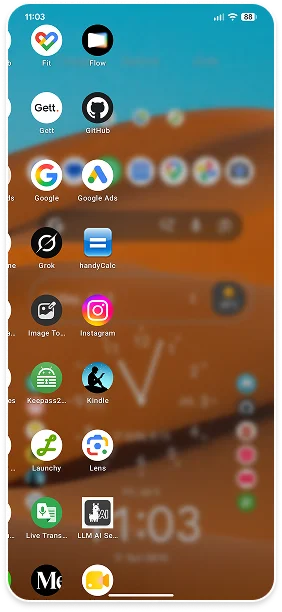 Swipe to reveal the app drawer
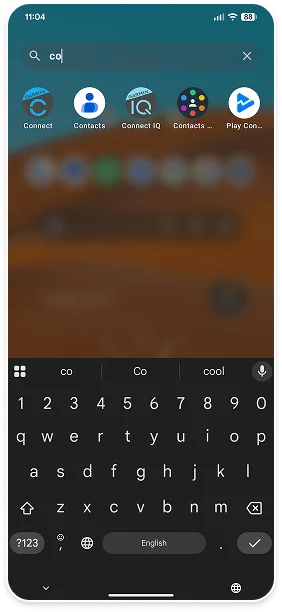 Search for apps
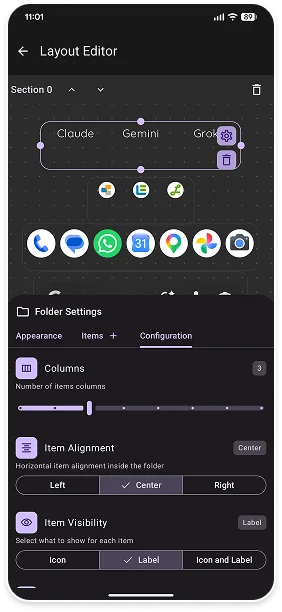 Layout editor enhancements
Version 0.5.0, 18.06.2026
This release is all about making Launcher Two feel more like yours, with personalized folder labels and a cleaner, more precise layout editor.
- Custom label fonts for folders - Pick between two handpicked fonts, Caveat and Quicksand, to give your folder labels some personality instead of the default look.
- Wider label sizing - Label size now scales further, so your folder text stays readable at the size you actually want.
- Visual grid in the Layout Editor - A subtle dot-matrix overlay appears while you drag and resize containers, making it easy to line everything up exactly where you want it.
- True full-screen layout - The title bar is gone and content now extends behind the system bars, giving your dashboard more room to breathe and a more immersive feel.
- Smoother dragging - Repositioning and resizing containers in a row now feels more accurate and responsive.
Bug Fixes:
- Fixed folders not passing scroll events through properly, which could cause scrolling to feel too fast or uncontrolled.
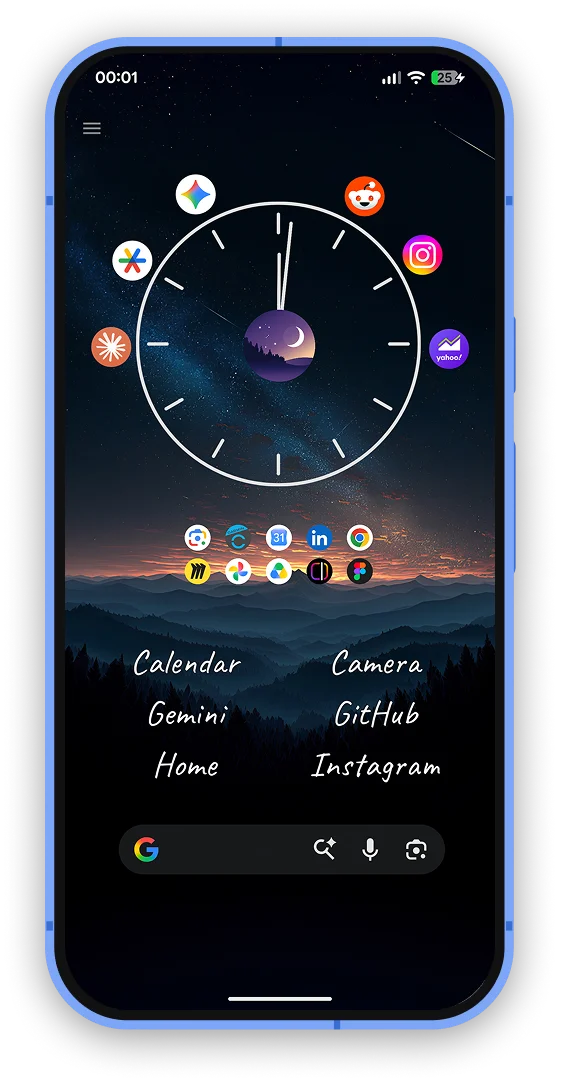 Flexible layout with Launcher Two
Version 0.4.0, 26.03.2026
Welcome to version 0.4.0 of Launcher Two!
With this release you are now able to add folders with your favorite apps to Launcher Two.
- Create and customize app folders which are tailored to you
- Unified folder and widget edit flow with the bottom settings sheet
- Semi-transparent border around all containers in the Layout Editor for pixel perfect alignment
- Improved widget picker for better widget browsing and preview
Folders with Apps
It is now possible to add folders with apps to Launcher Two.
With folders you can arrange your favorite apps on the main screen in any way you want.
Moreover, you are able to customize the looks of apps inside a folder to get unique and creative looks!
In this release, you are able to customize below options for items inside a folder:
- Select what to show: Icons, Labels or Both
- Change app icon size from 50% to 300%
- Change app label size from 80% to 300%
- Modify item alignment inside folder
- Modify app order inside folders
- Modify item title
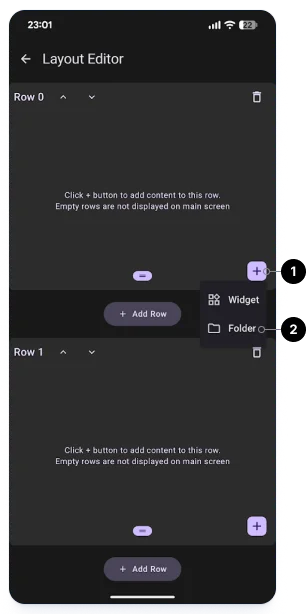 Add folder to container
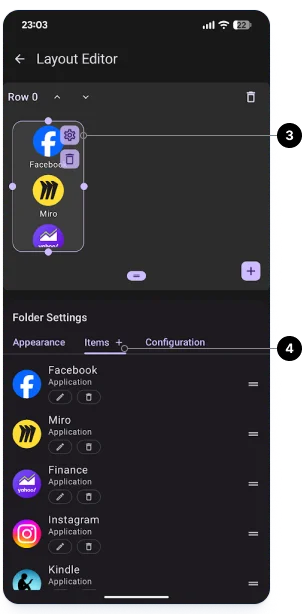 Click folder settings and add items
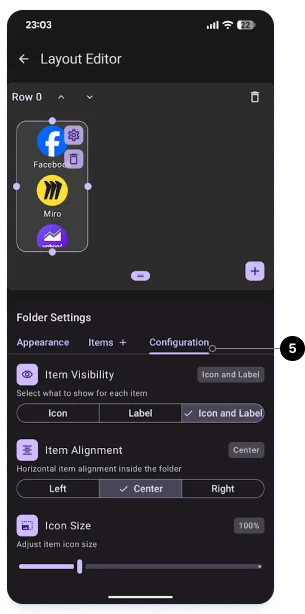 Adjust folder configuration
Follow below steps to add a folder to a row:
- To add a folder, click the plus button inside a row
- Select "Folder"
- Open Folder Settings by clicking the settings icon in the top right corner
- Click the "+" buttons on the "Items" tab of the Folder Settings bottom sheet and add the apps you want
- Navigate to the "Configuration" tab to customize the looks of apps in the folder
Pair with Launchy Widget
Launchy Widget on Google Play Store
Launchy Widget is a companion widget to Launcher Two that extends its functionality with customizable folders.
With Launchy Widget, you can create highly customizable folders for apps, shortcuts, browser bookmarks and direct dials.
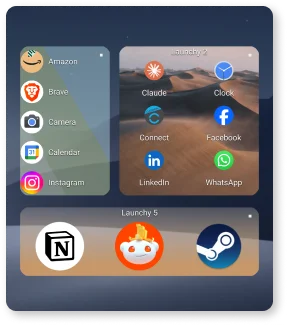 Launchy Widget is used to create customizable folders
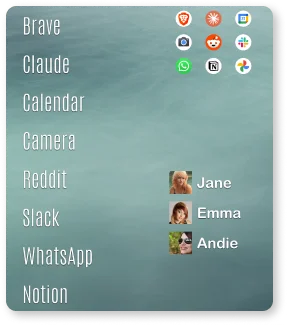 Apps, contacts, bookmarks and shortcuts
Version 0.3.0, 13.02.2026
This release contains a major redesign of the layout editor, which is much more intuitive and easy to use.
Each row of the main screen becomes like a canvas where you can add widgets and arrange them as you like.
It is now possible to add multiple widgets to a row, move and resize widgets by dragging, and stacking widgets on top of each other.
- Redesign of the Layout Editor to support gridless positioning
- Add multiple widgets to a row
- Drag to move and resize widgets
- Stack widgets on top of each other to create unique layouts
- Delete widgets directly by clicking the delete button on the widget
- Change the height of the row by dragging the bottom edge of the row
Launcher Two is still in open testing which means there may be bugs and incomplete features.
Major architectural changes mean a fresh start (no data migration).
Support for app shortcuts for launching apps coming in the next releases.
New Layout Editor
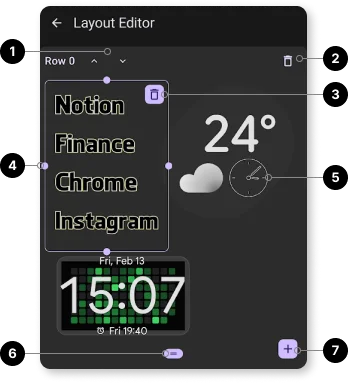 New Layout Editor
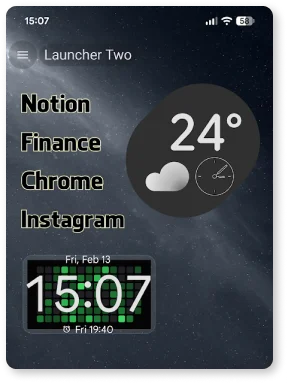 Launcher Two with Launchy Widget
- Use row up/down buttons to reorder rows on the main screen
- Delete row button to delete a row
- Delete widget button to delete the widget from a row
- Drag to move and resize a widget in a row
- Stack widgets on top of each other to create unique layouts
- Drag handle to change the height of a row
- Add a new widget to a row
Version 0.2.0, 01.02.2026
This is the second release of Launcher Two to the open testing track.
This release is focused on a complete redesign of the way items are added to the main Launcher Two screen and acts as a base for future functionality.
- Enhanced layout editor to manage screen content with rows and containers
- Database schema redesigned from scratch. No migration
- Ability to add or remove container background
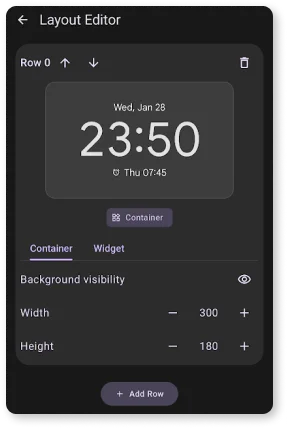 Edit Container and Widget Properties
Version 0.1.0, 09.01.2026
Initial release of Launcher Two to the open testing track.
This release includes the ability to add widgets to Launcher Two.
Additional functionality coming in the next releases.
- Ability to add widgets
- Layout Editor to manage widgets
- Change widget width and height
- Reorder widgets with buttons (to be improved later)
- Dark or Light theme selection
Below images show the layout editor and the resulting layout.
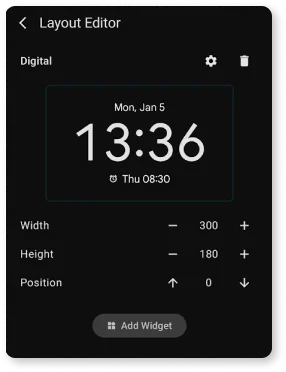 The first Layout Editor, with width, height and position controls per widget
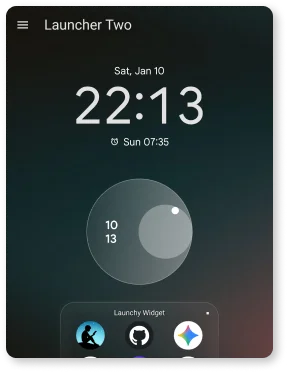 The resulting main screen with a clock, a battery widget and Launchy Widget