Getting Started
Natural Interaction
Kanvas Gallery is designed to provide the most intuitive touch screen experience. The main interaction mode is called "Natural Interaction" mode, where items instantly react to your gestures.
When you use one finger, you are directly controlling the album or image you touch. Two finger gestures like pinching are contextual: if you pinch on a single picture, you zoom in or out on that image. If you place your two fingers on different objects or areas of the screen and pinch, you zoom and pan the canvas itself.
Canvas Interactions
- Move Around: Pan (drag your finger) anywhere on the canvas to explore different areas.
- Zoom and Pan: Use a pinch gesture (two fingers) anywhere to zoom in, zoom out, and move the canvas simultaneously.
- Quick Zoom: Double tap the canvas to instantly zoom to the standard 100% view or zoom all the way out to see everything.
Interacting with the "This Device" Window
The "This Device" Window is your main gateway to all the albums and images stored on your device. It always stays visible on your canvas and cannot be closed.
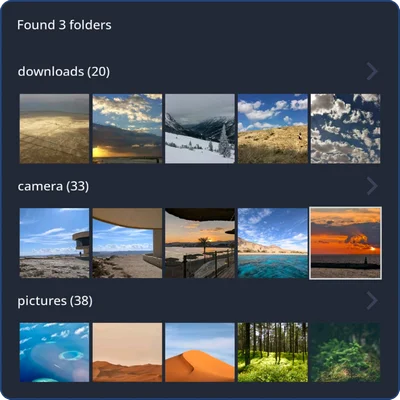
- Move It: You can drag the window to a new location using the title bar or any of its edges.
- Browse Albums: Scroll up or down (vertically) to view all the albums available on your device.
- View Images: Scroll left or right (horizontally) on the thumbnail strip to see all the images inside a specific album.
- Open an Album: Tap the album's title to open its contents in a separate, dedicated album window on your canvas.
- View an Image: Tap any thumbnail to immediately place that image on your canvas.
- Select Multiple: Press and hold (long press) any thumbnail to activate the selection mode, allowing you to choose multiple images.
Interacting with an Album Window
Once you tap an album title in the "This Device" window, a new dedicated window opens on your canvas to display all the images in that specific album. Actions within this window include:
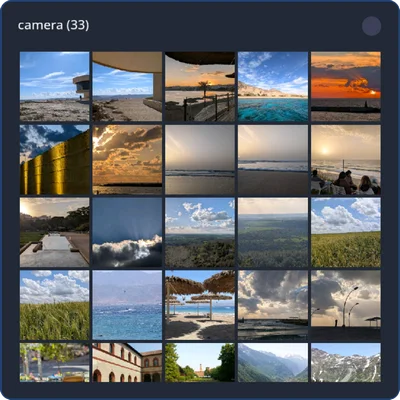
- Move It: You can drag the window to a new location using the title bar or any of its edges.
- Close It: Tap the icon in the top right corner to close the album window.
- View Images: Scroll album contents up or down (vertically) to see all the images inside the album.
- View an Image: Tap any thumbnail to immediately place that image on your canvas.
- Select Multiple: Press and hold (long press) any thumbnail to activate the selection mode, allowing you to choose multiple images.
Interacting with Individual Images on the Canvas
Tap a thumbnail in any album view to instantly place the full-sized image on your canvas. Once an image is placed on the canvas, you can interact with it using the following gestures:
- Move It: Drag the image anywhere on the canvas to relocate it.
- Zoom: Use a pinch gesture (two fingers) on the image to zoom in or out.
- Quick Zoom: Double-tap the image to either reset the zoom to fit or zoom in slightly.
- Close: Tap the image's top right corner to remove the image from the canvas.
- Browse Album: Tap the left or right side of the image to jump to the previous or next image from its album.
- Select Multiple: Press and hold (long press) the image to enter selection mode, allowing you to select multiple images.
Multi Select
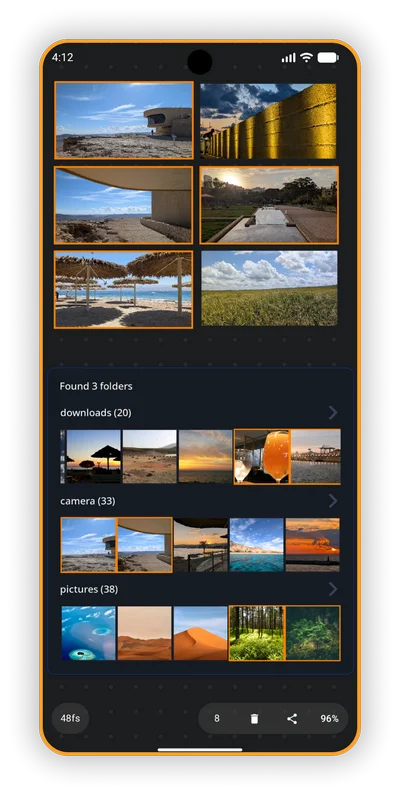
It is possible to select multiple items and perform bulk operations.
- Long press an image on the canvas or a thumbnail in one of the windows.
- Tap additional thumbnails or images to select items you want.
- Tapping a selected item removes it from selection.
- Tap anywhere on the empty canvas to clear the selection mode.
- Share or delete the selected items using the controls at the bottom of the screen.
Your Visual Space
Kanvas Gallery allows you to explore and arrange images spatially, just like spreading them out on your office or coffee table. With Kanvas you can finally make use of your whole screen space by opening multiple images and albums simultaneously. Pan and zoom anywhere you want, zoom out to see everything at once, or zoom in to a specific location. Easily place shots side-by-side for comparison, browse different folders in parallel, and move and resize everything whenever you want.
Remembers Your Setup
Whether you are gathering reference shots for a project or sorting vacation memories, Kanvas remembers your entire visual layout. Every image, album, and zoom level remains exactly how you left it, even after closing and reopening the app. Group images related to a specific project and set them aside on the canvas, then review them later. Your work is saved, and when you come back everything will be there.
What is NOT Supported
Currently Kanvas Gallery supports only basic file browsing and operations.
- The gallery is local only, no cloud sync/connection/backup
- No image editing abilities
- No ability to display and play videos (in the roadmap)
- No ability to perform operations like move, rename